Clean up every inbox in one place
See which senders fill your Gmail, Yahoo and iCloud inboxes, sort them by Gmail tab, unsubscribe from newsletters in bulk and clear thousands of emails in a click. Everything runs on your computer — your email never leaves it.
macOS · Windows · Linux · v1.8.1 · 84 downloads
Get it from Microsoft Store· no security warningsThousands of emails, gone in one click
Newsletters and promotions pile up for years. MailClean shows which senders they come from and clears all of them at once. Try it here.
- 0
- mail providers
- 0
- servers that see your email
- 0%
- runs on your computer
- 0 days
- to undo any clean-up
- SShopKart Deals1,240junk
- DDaily Tech Digest980junk
- PPriya Sharma214
- FFoodDash860junk
- NNorthwind Bank156
- QQ&A Weekly1,105junk
Try it: clear 4 newsletter senders in one click.
Everything you need to tame your inbox
See who fills your inbox
Every sender ranked by number of emails, storage used and how much you never open.
Clean up in one click
Select senders and move thousands of emails to Trash or Archive at once — starred and important emails stay. Nothing is permanently deleted.
Bulk unsubscribe
Pick dozens of newsletters and unsubscribe from all of them. You see exactly what will happen before you confirm.
Rules that clean for youNEW
Always trash a sender, or archive Promotions older than 30 days — applied after every sync.
Cleaning suggestionsNEW
Senders you never open, mail older than a year, your Promotions tab — one click to review each.
Gmail tabs & dates
Filter by Promotions, Updates, Social… or any date range, and clean only that.
Save attachments in bulkNEW
Download every statement or invoice from the senders you pick — PDF, images or any format. Runs in the background, with a download history.
Who has your emailNEW
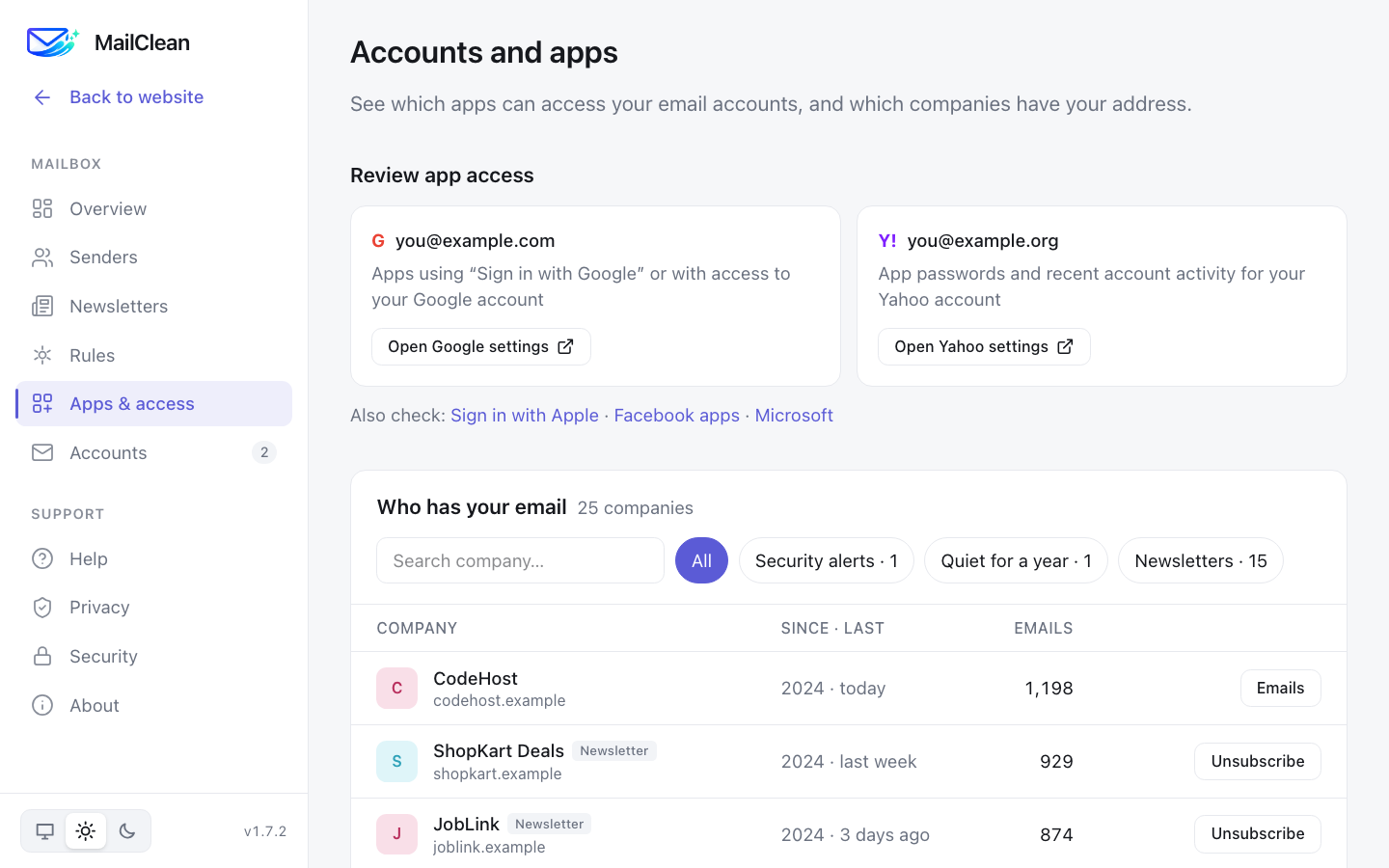
Every company that has your address, with security alerts, old accounts and one-click links to review app access.
Private by design
Runs on your computer. Only sender, date, size and flags are saved — never subject lines or message content.
See it in action
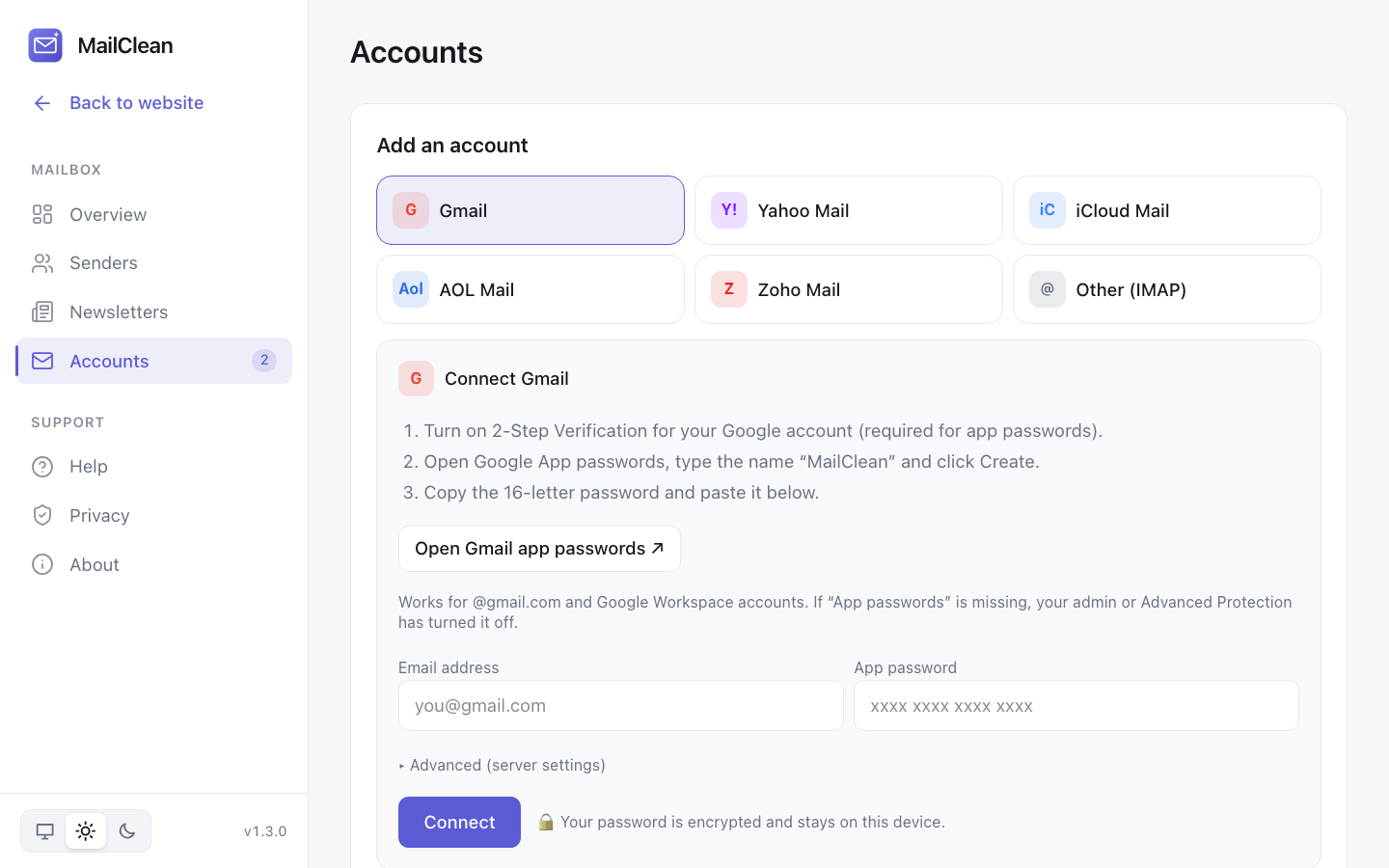
Light and dark mode, on every platform. Shown with sample data.
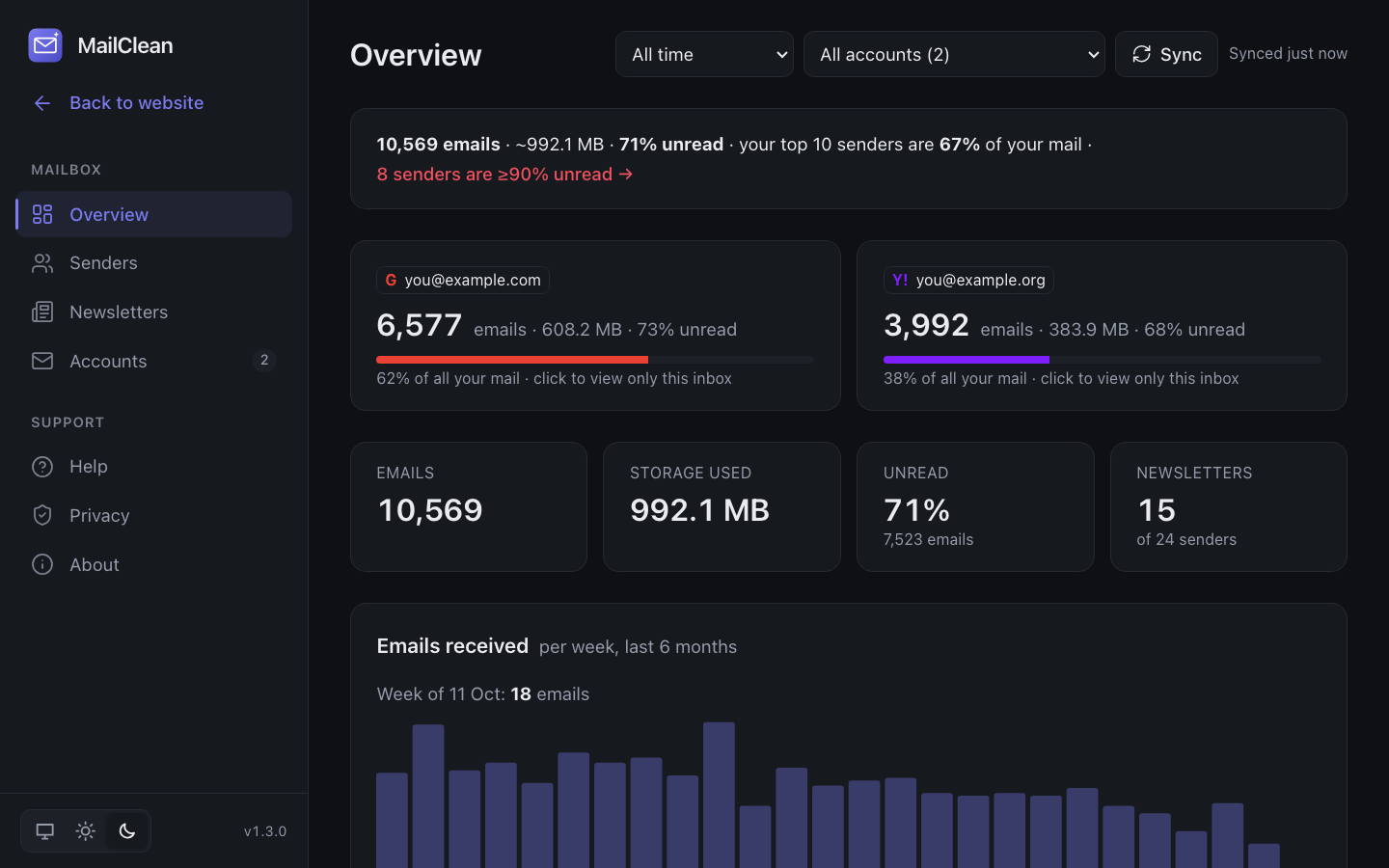
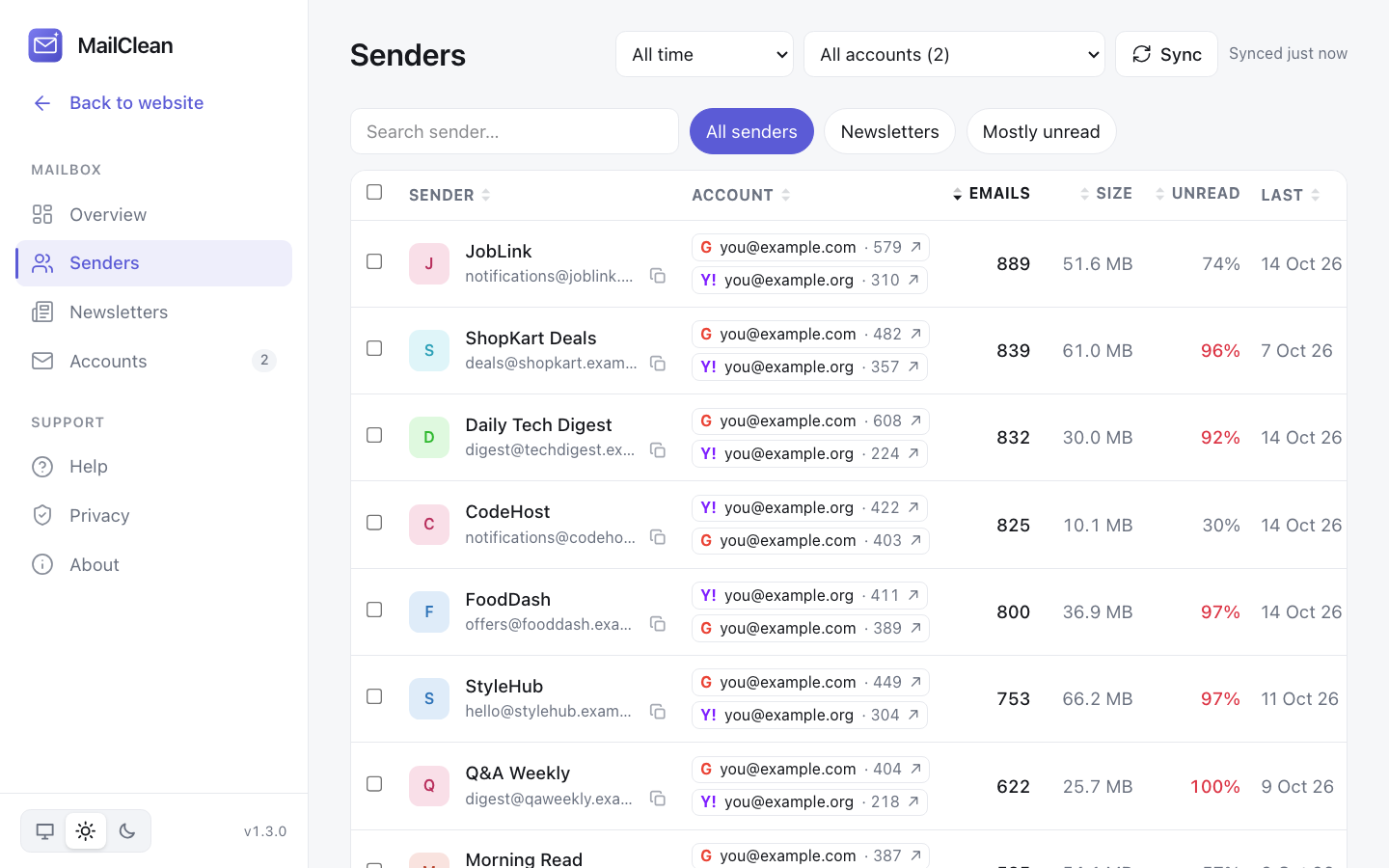
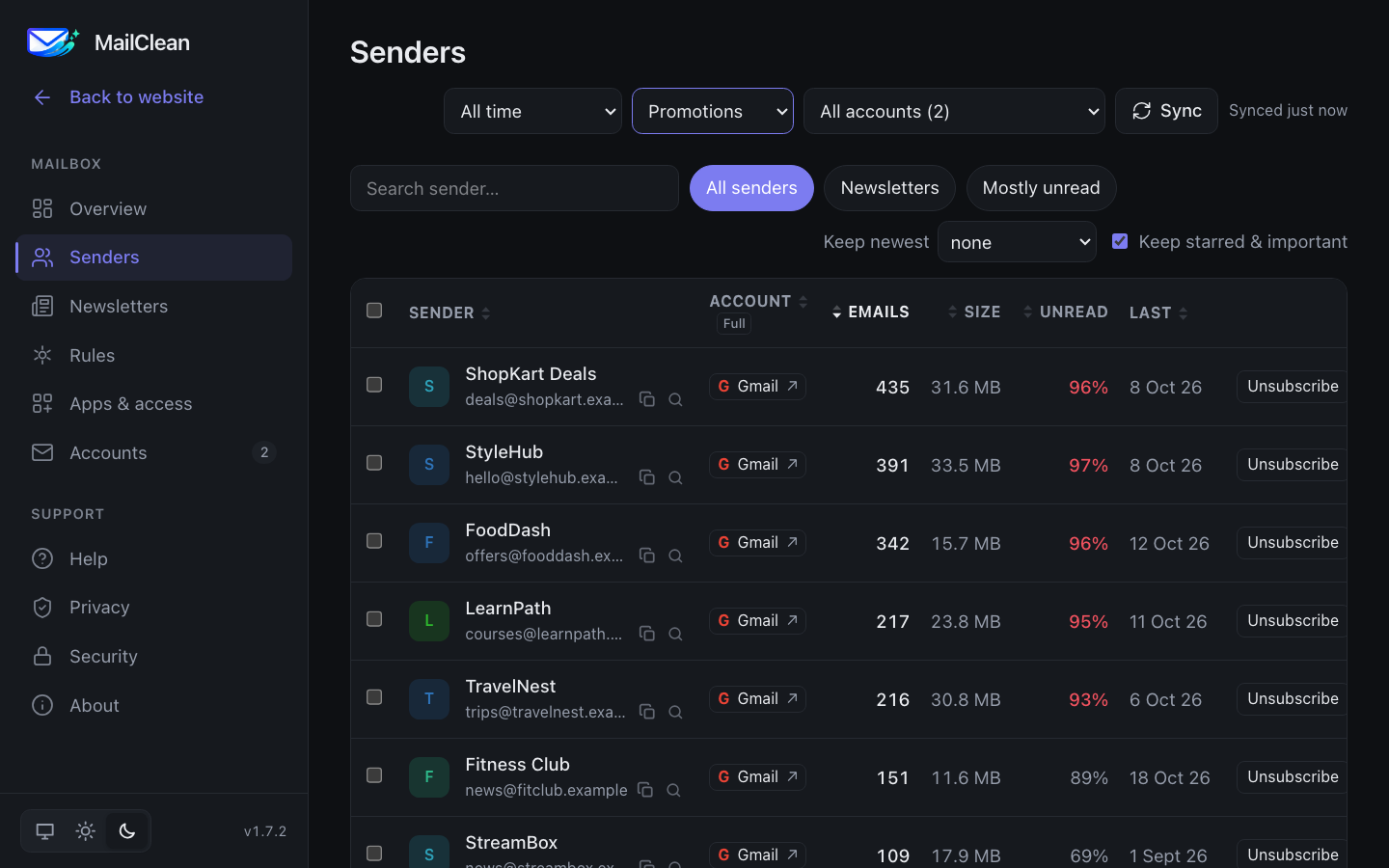
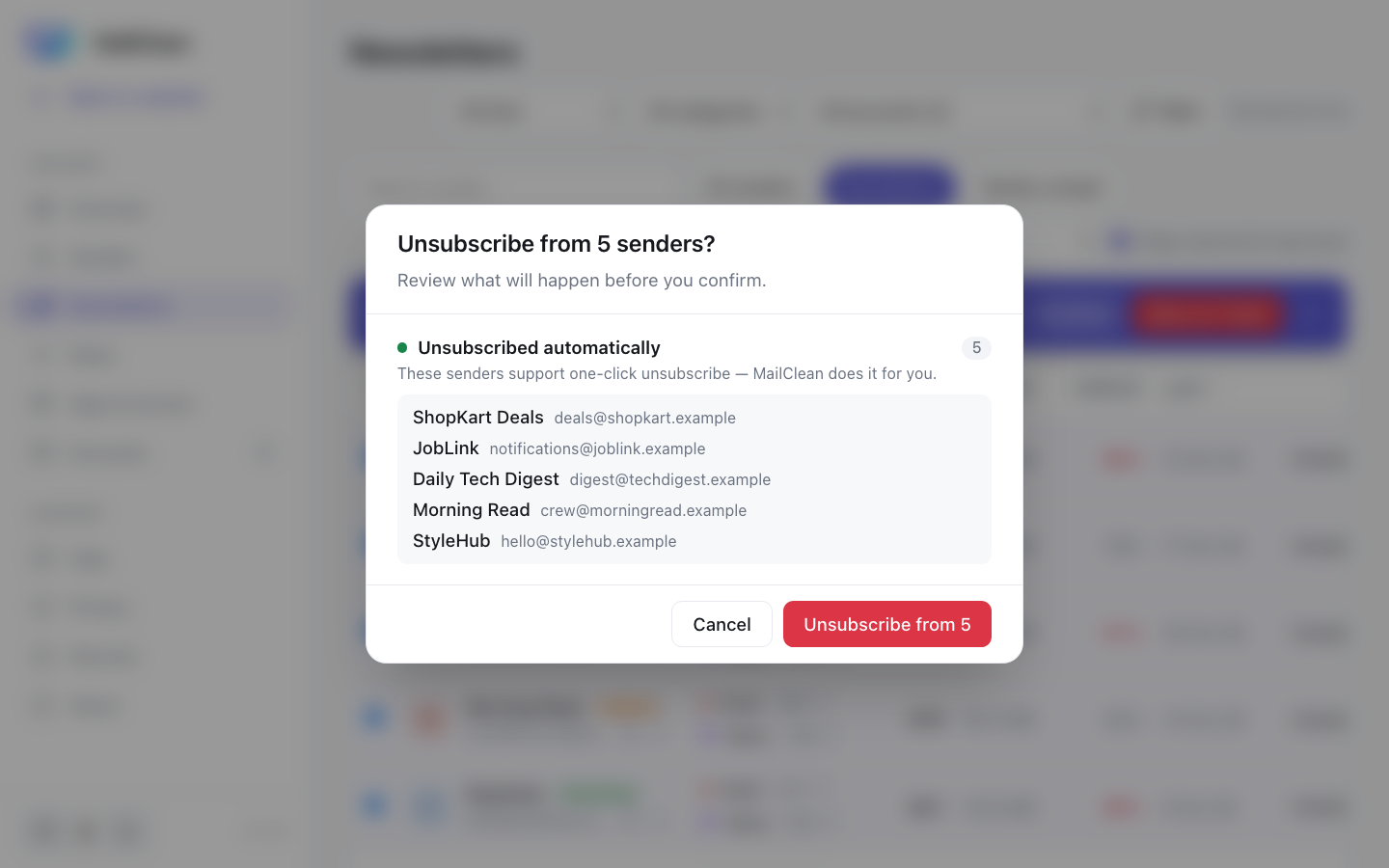
Up and running in two minutes
- 1
Download MailClean
Install the free app for macOS, Windows or Linux.
- 2
Create an app password
MailClean shows the exact steps for Gmail, Yahoo, iCloud and others.
- 3
Clean up
See your biggest senders and Gmail tabs, unsubscribe in bulk and clear thousands of emails at once.
Your email stays yours
Most inbox cleaners run on someone else's server and read your mail to do it. MailClean is different: it runs entirely on your computer and talks directly to your email provider.
- ✓ No MailClean server, account or tracking
- ✓ Saves only sender, date, size and flags — never subjects or content
- ✓ Starred and important emails are kept when you clean up
- ✓ Optional 6-digit PIN locks the app on shared computers
- ✓ Passwords encrypted on your device (AES-256-GCM)
- ✓ Nothing permanently deleted — Trash keeps mail for ~30 days
- ✓ Open source: anyone can check the code
How MailClean compares
Most inbox cleaners scan your mailbox from their servers — and some free ones pay for it with your data.
| MailClean | Clean Email | Unroll.Me | Cleanfox | SaneBox | Mailstrom | Chuck | |
|---|---|---|---|---|---|---|---|
| Free to use | ✓ | ✕ | ✓ | ✓ | ✕ | ✕ | ◐ |
| Email stays on your device | ✓ | ✕ | ✕ | ✕ | ✕ | ✕ | ✓ |
| Doesn't sell or research your email data | ✓ | ✓ | ✕ | ✕ | ✓ | — | ✓ |
| Open source | ✓ | ✕ | ✕ | ✕ | ✕ | ✕ | ✕ |
| Bulk delete by sender | ✓ | ✓ | ✕ | ◐ | ◐ | ✓ | ✓ |
| Unsubscribe | ✓ | ✓ | ◐ | ✓ | ◐ | ✓ | ✓ |
| Automatic rules | ✓ | ✓ | ◐ | ◐ | ✓ | ◐ | ◐ |
✓ yes · ◐ partly · ✕ no · — not stated on their website. Based on each company's own website; details and sources are in the full comparison.
Download MailClean
Free for everyone · version 1.8.1
The web demo runs in your browser with sample data — no download, no sign-in.
Open the web demo →First launch steps are under “How to install” on each card. On Windows, the Microsoft Store version installs with no warnings. All releases
Open source
MailClean is MIT-licensed. Read the code, report issues, suggest features or contribute on GitHub.
FAQs
›Is MailClean free?
Yes. It is free and open source under the MIT license. There are no accounts, subscriptions or limits.
›Does MailClean read my emails?
No. MailClean asks your provider only for each email's sender, date, size, read/starred status, Gmail tab and unsubscribe link, and saves only those. Subject lines are never saved or shown — Yahoo and AOL send the whole header block, so MailClean picks out the sender and unsubscribe link and discards the rest. Message text is never downloaded, attachments only when you ask to save them, and nothing is sent to any MailClean server — there isn't one.
›Can I clean only my Gmail Promotions tab?
Yes. Pick Promotions (or Updates, Social, Forums, Purchases) in the category filter and everything — totals, senders and clean-ups — covers only that tab. Other providers have no tabs, so the filter applies to Gmail mail.
›Will it delete my starred or important emails?
No. “Keep starred & important” is on by default: when you trash or archive a sender, emails you starred or Gmail marked important stay where they are. You can turn it off on the Senders page.
›Can MailClean clean up automatically?
Yes. Add a rule — for example “always trash emails from this sender” or “archive Gmail Promotions older than 30 days” — and MailClean applies it after every sync, and every 6 hours while the app is open. Starred and important emails are always kept.
›Can MailClean show which apps have access to my account?
MailClean links straight to Google's, Yahoo's, Apple's and Microsoft's own pages that list the apps with access to your account, so you can review and remove them there. It also lists every company that has emailed you, flags security alerts and accounts you haven't heard from in a year — built from sender addresses it already has.
›Can I lock MailClean with a PIN?
Yes. In Security → App lock, set a 6-digit PIN and MailClean asks for it every time it opens; after 5 wrong tries you have to wait before trying again. If you forget it, you can reset MailClean from the lock screen — that removes your connected accounts and scanned data from the app (your mailboxes aren't changed) so you can start fresh.
›How does bulk unsubscribe work?
Select the senders and click Unsubscribe. MailClean first shows which ones it can unsubscribe automatically (one-click, RFC 8058) and which need you to confirm on the sender's page, then does the automatic ones and gives you a button for each of the rest.
›Why an app password instead of “Sign in with Google”?
An app password lets the app on your own computer talk directly to your mail server, with no third-party service in between. You can revoke it any time in your Google, Yahoo or Apple account settings.
›Does this website track me?
Only if you accept cookies: the website then uses Google Analytics to count visits and download clicks. The MailClean app itself has no analytics or tracking of any kind.
›Can I undo a clean-up?
Yes. Trash moves emails to your provider's Trash folder, where they stay for about 30 days. Archive just removes them from the inbox.
›Why do macOS or Windows warn me when I open it?
MailClean is free, and code-signing certificates cost a yearly fee, so the downloads aren't signed yet. On Windows, the easiest way is to install MailClean from the Microsoft Store — it's signed by Microsoft, shows no warnings and updates itself. If you use the downloaded file, click More info → Run anyway. On macOS, open the app once, then go to System Settings → Privacy & Security and click Open Anyway.
›Does it work with Outlook or Hotmail?
Not yet. Microsoft no longer allows app passwords for Outlook.com, so it needs Microsoft sign-in, which is in progress.